Workspaces & tabs¶
terminux is organized around two concepts: workspaces (the left sidebar) and tabs (the terminals inside a workspace).
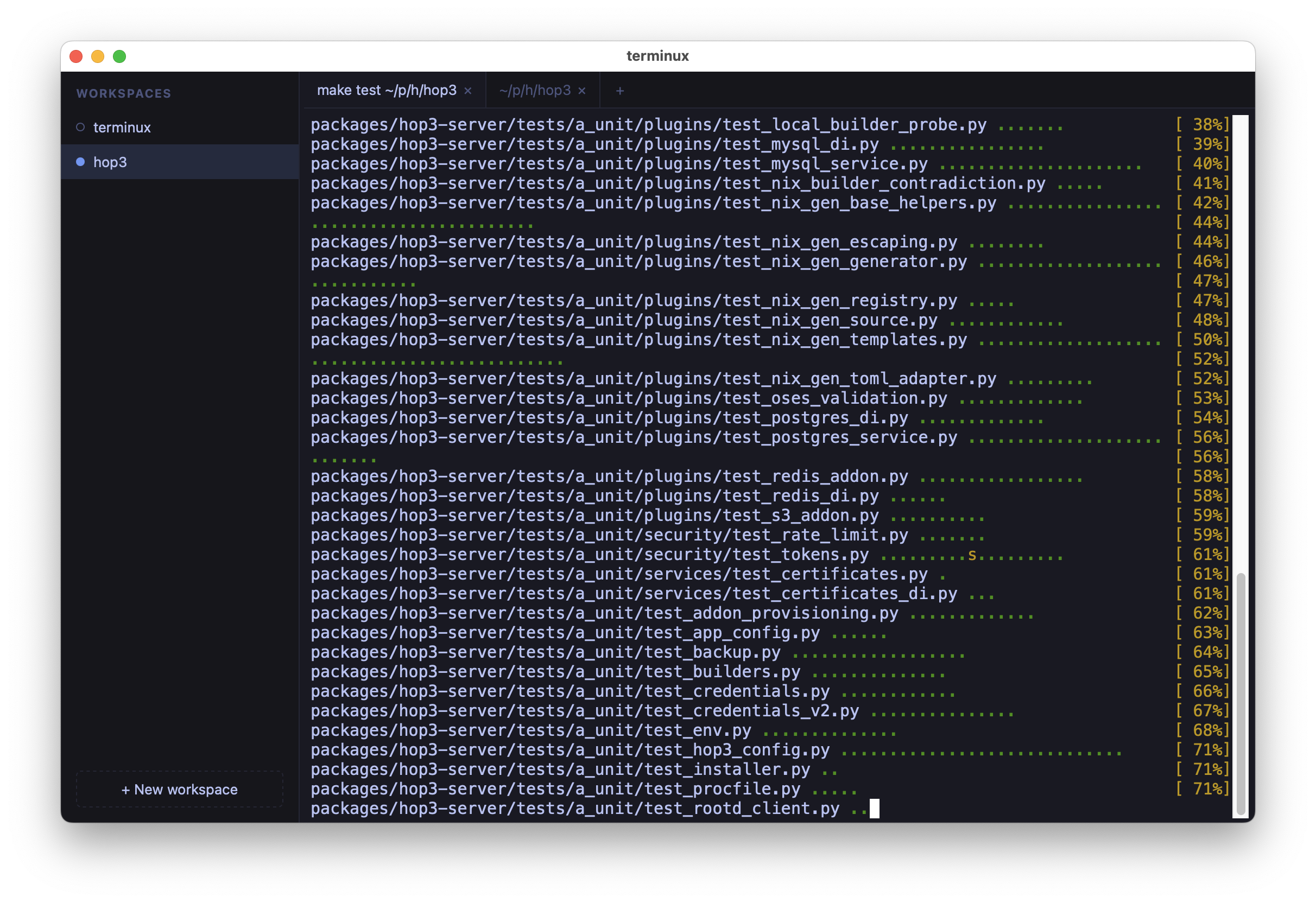
Workspaces¶
A workspace is a named group of terminal tabs. The sidebar holds a persistent, reorderable list of them.
- Create / rename / reorder / close. Drag-and-drop reordering works even in pywebview's WKWebView (where HTML5 drag-and-drop does not), with live before/after drop feedback.
- Automatic naming. A workspace's name tracks the first tab's working directory automatically. Drag a different tab into slot 0 to promote it into the naming role; jumping between tabs within a workspace doesn't keep renaming it. An explicit rename pins the name so it stops tracking, and the pinned name persists across restarts. Inline rename works for both workspaces and tabs.
- Status dot. Each workspace shows a lightweight status indicator.
- Closing the last tab of a workspace closes the workspace and activates another one; it does not quit the app.
Tabs¶
Each tab is an interactive terminal backed by its own real PTY shell.
- Titles follow the shell's
OSC 0/OSC 2escape sequences unless pinned by a manual rename. - New tabs open in the working directory of the previously active shell.
- Restart in place. A tab whose shell has exited can be restarted without losing its slot.
- Background tabs keep streaming. Switching workspaces or tabs preserves all running sessions; output continues with no switch jank.
Session activity¶
terminux tracks per-workspace active time for the current session: the seconds you've actually been typing into one of its tabs. Counting rules:
- Credit goes to the currently active workspace at the moment of each 1 Hz tick.
- A tick credits a second only if you've typed something in the last 30 seconds. AFK time, long-running silent commands, and time spent in another app don't count.
- Counters are in-memory only: they reset when terminux exits.
Each workspace's accumulated time shows inline in the sidebar (small, dim, right-aligned next to the name). Hover for the same value as a tooltip.
The command palette (F1, provisional, on Linux; Cmd+Shift+P on
macOS) is a launcher: verbs only, fuzzy-filtered. Commands relevant to
activity stats:
- Display usage stats: opens a focused overlay listing every workspace ranked by active time, with a bar showing each one's share of the busiest. Escape or click outside to dismiss.
- Reorder sidebar by activity (most used first): one-shot rearrangement of the sidebar; nothing keeps reordering automatically after that.
- Reset session activity counters: wipes all per-workspace accruals and restarts the session clock.
Working vs ready¶
Two indicators carry meaning in the sidebar:
- Amber dot (working). A foreground task is actively producing output. You can ignore unless you want to check on it.
- Green dot (ready). A task has finished or signalled here. Check it when convenient.
Priority is active > exited > busy > unseen > idle. "Busy" requires recent PTY output (within the last few seconds), so an idle TUI (Claude Code waiting for input, a parked vim) doesn't keep the dot lit. Busy beats unseen so a chatty long-running task keeps the working signal until it actually quiets down.
The ready signal is strict: raw output by itself does not flip a workspace to ready. It fires only on:
OSC 133;C/;Dwhen shell integration is set up: the shell itself tells terminux a command finished (≥ 2 s).- A raw
BELoutside any OSC, or anOSC 9notification: an app explicitly signalling "look here." - A kernel-level
busy → idletransition that lasted at least ~5 s. Catches the cases without shell integration:sleep 10ending,make testfinishing, Claude Code returning to its prompt after a real thinking session.
The 1 Hz background ticker drives the busy→idle detection, so a "task finished" event surfaces within a second of going quiet.
Two short windows soften the visual feedback right around a visit:
- Post-visit grace (a few seconds after you leave a workspace): both the busy promotion and ready flagging are suppressed for that window. The visit's redraw tail and xterm's settling effects emit bytes that would otherwise paint the dot the moment you looked away.
- Visit dwell: a workspace only counts as "seen" (clearing its
ready flag on the way out) when you stay for ~3 s. A brisk
Cmd+1/Cmd+2/Cmd+3sweep across a row of green dots preserves every one of them, so quick navigation doesn't silently dismiss "look here later" information.
Trade-offs of the heuristic:
- A task that starts and finishes inside the post-visit grace window won't raise the dot.
tail -fgoing quiet after a sustained burst falsely reads as "ready"; the next batch of output flips it back to busy.- A very short task (< 5 s busy) doesn't trigger the kernel-level ready
signal; if you want every
git statusto register, set up shell integration soOSC 133;Ddoes the (more precise) job.
The per-tab tab-bar indicator inside the active workspace is finer-grained: any output to a non-viewed tab shows a small activity dot. That's the "something is happening" signal, distinct from the workspace-level "ready" cue.
Persistence¶
terminux saves structure and the visible buffer, never live processes.
What persists across restarts:
- Workspaces and their tabs (the layout).
- Window geometry, sidebar width and collapsed state, terminal font size, stored server-side so the loopback port changing each run doesn't reset them.
- Each shell's last working directory.
- Each tab's scrollback (last ~5000 lines), captured periodically and on
shutdown. On restart it's replayed into a fresh terminal followed by a dim
──── session resumed @ <time> ────separator, then the new shell starts underneath.
On restart, every tab respawns a fresh shell in the directory it was in at exit. If that directory no longer exists, it falls back to the default. The restored scrollback is display-only: commands shown above the separator are not still running.
Privacy
Scrollback can contain secrets (tokens echoed by a CLI, cat secret.env,
etc.). Files are stored locally only, capped at 2 MB per tab, and
deleted when the tab or workspace is closed. To disable persistence
entirely, set scrollback_persist to false via PATCH /api/ui.
Not persisted
Running processes are not restored; only their visible output is.
Split panes and the Windows PTY backend are still on the roadmap (see
notes/technical-spec.md §11–§14).
Full-screen TUIs (Claude Code, vim, less, tmux, fzf…)
Full-screen apps draw into the terminal's alternate screen buffer, which they own and clean up when they exit. By the time terminux saves a tab's view (and certainly by the time the app has been SIGHUP'd on quit), that buffer is gone: the OS gave it back to the program and the program gave it back to the system.
You'll see the shell session around the TUI restored: your commands, their non-fullscreen output, and the shell prompt. This is the same limit iTerm2's session restoration hits; there's no faithful way around it.
Input integrations¶
- Drag a file onto the terminal to insert its full, shell-quoted path.
- macOS line-editing chords and
Shift+Cmd+arrow navigation are supported;Shift+Enterinserts a newline (works with Claude Code and similar tools). - Clickable URLs. URLs in the terminal are highlighted on hover and open
with
Ctrl+clickon Linux orCmd+clickon macOS, matching iTerm2 and Terminal.app, so a stray click never navigates. - Auto-copy on select (iTerm2-style) is available as a persisted
preference; off by default. Toggle with
Ctrl+Shift+Alt+C(Linux) orCmd+Alt+C(macOS); see Keyboard shortcuts.