Keyboard shortcuts
terminux follows the platform convention for the app modifier:
- Linux:
Ctrl+Shift+<key>for everything, including digit jumps. RawCtrl+<letter>flows to the shell unchanged, matching GNOME Terminal, Konsole, Alacritty, Ghostty and kitty. - macOS:
Cmd+<key>. RawCtrlis left alone so terminal/Emacs chords (tmux prefix, fish/zsh history, readline editing) flow straight to the shell.
All shortcuts keep working while the terminal has focus.
Navigation
| Action | Linux | macOS |
|---|---|---|
| Jump to workspace 1–9 | Ctrl+Shift+1 … Ctrl+Shift+9 | Cmd+1 … Cmd+9 |
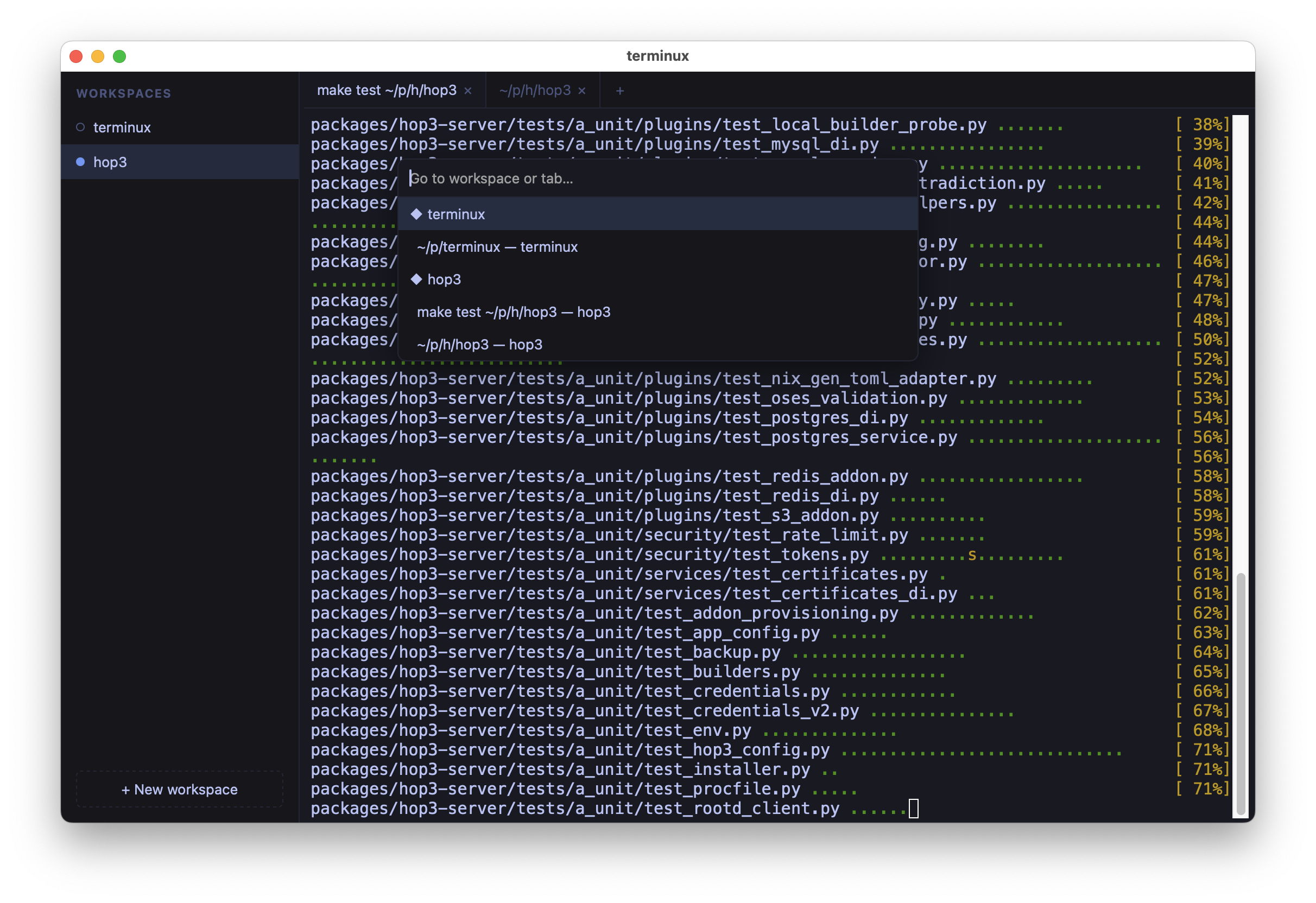
| Quick switcher (fuzzy, workspaces & tabs) | Ctrl+Shift+P | Cmd+P |
| Command palette (commands + actions) | F1 (provisional) | Cmd+Shift+P |
| Previous / next tab | Ctrl+Shift+[ / Ctrl+Shift+] | Cmd+Shift+[ / Cmd+Shift+] |
| Previous / next workspace | Ctrl+Shift+Up / Ctrl+Shift+Down | Shift+Cmd+Up / Shift+Cmd+Down |
The quick switcher fuzzy-matches across every workspace and tab:
Workspace & tab lifecycle
| Action | Linux | macOS |
|---|---|---|
| New tab | Ctrl+Shift+T | Cmd+T |
| New workspace | Ctrl+Shift+N | Cmd+N |
| Close tab / workspace | Ctrl+Shift+W | Cmd+W |
Closing the last tab of a workspace closes the workspace and activates another one rather than quitting the app.
View
| Action | Linux | macOS |
|---|---|---|
| Toggle sidebar | Ctrl+Shift+B | Cmd+B |
| Find in terminal | Ctrl+Shift+F | Cmd+F |
| Zoom terminal font in / out | Ctrl+Shift++ / Ctrl+Shift+- | Cmd++ / Cmd+- |
| Reset font size | Ctrl+Shift+0 | Cmd+0 |
Editing
- macOS line-editing chords are supported.
Shift+Cmd+ arrow keys for navigation.- Shift+Enter inserts a newline (works with Claude Code and similar tools).
Selection & links
| Action | Linux | macOS |
|---|---|---|
| Toggle auto-copy on select (iTerm2-style) | Ctrl+Shift+Alt+C | Cmd+Alt+C |
| Open URL under cursor | ++ctrl+click++ | ++cmd+click++ |
Auto-copy is off by default; toggling persists the preference across restarts. Linux users who rely on middle-click paste can leave it off.